Configure search fields and matching modes
Configure a general catalog search and separate code filters using Text, Exact or Prefix. This guide covers the independent field lists available in WPXFacets 0.1.21.
Independent fields
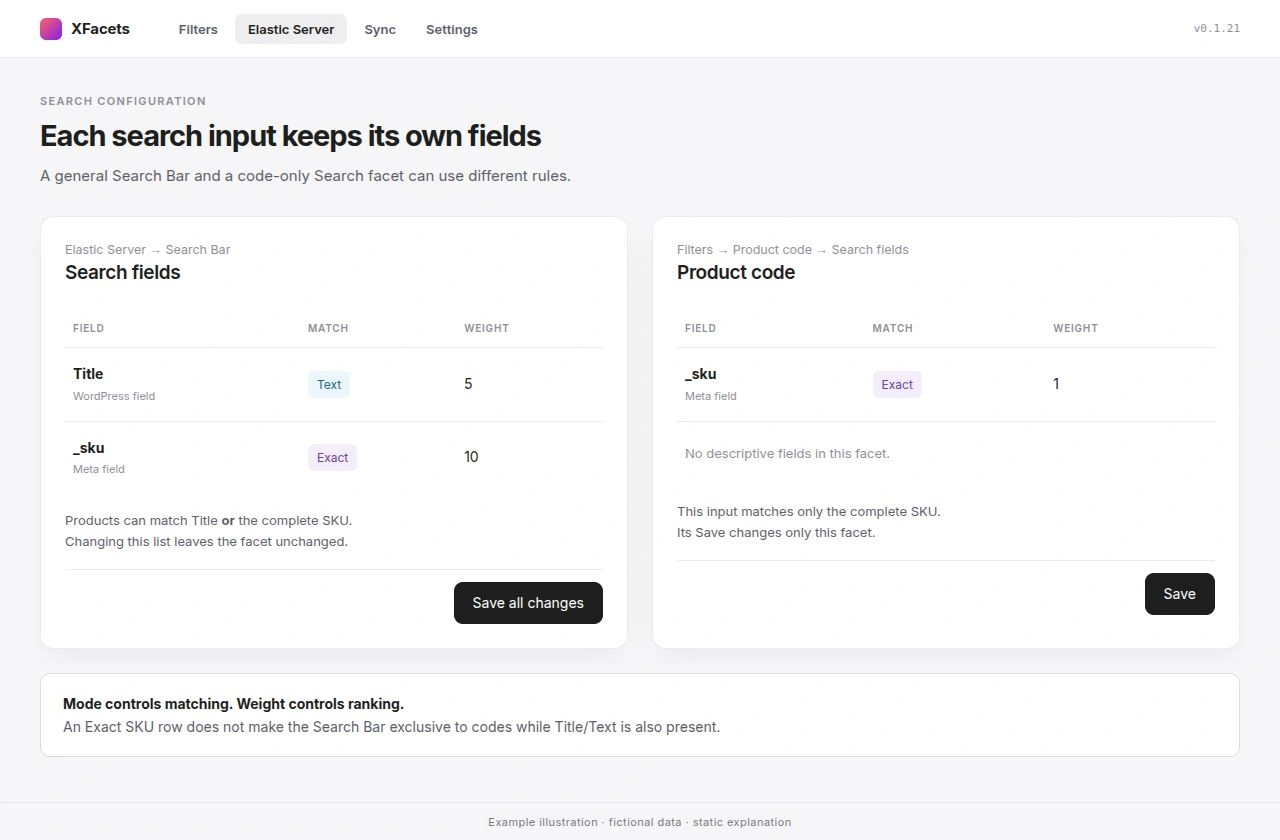
The Search Bar searches the catalog and opens a results page. A Search facet narrows the product listing where its filters are displayed. Each has its own search fields, weights and matching modes. Saving a Search facet changes only that facet; saving the Search Bar leaves every facet unchanged.
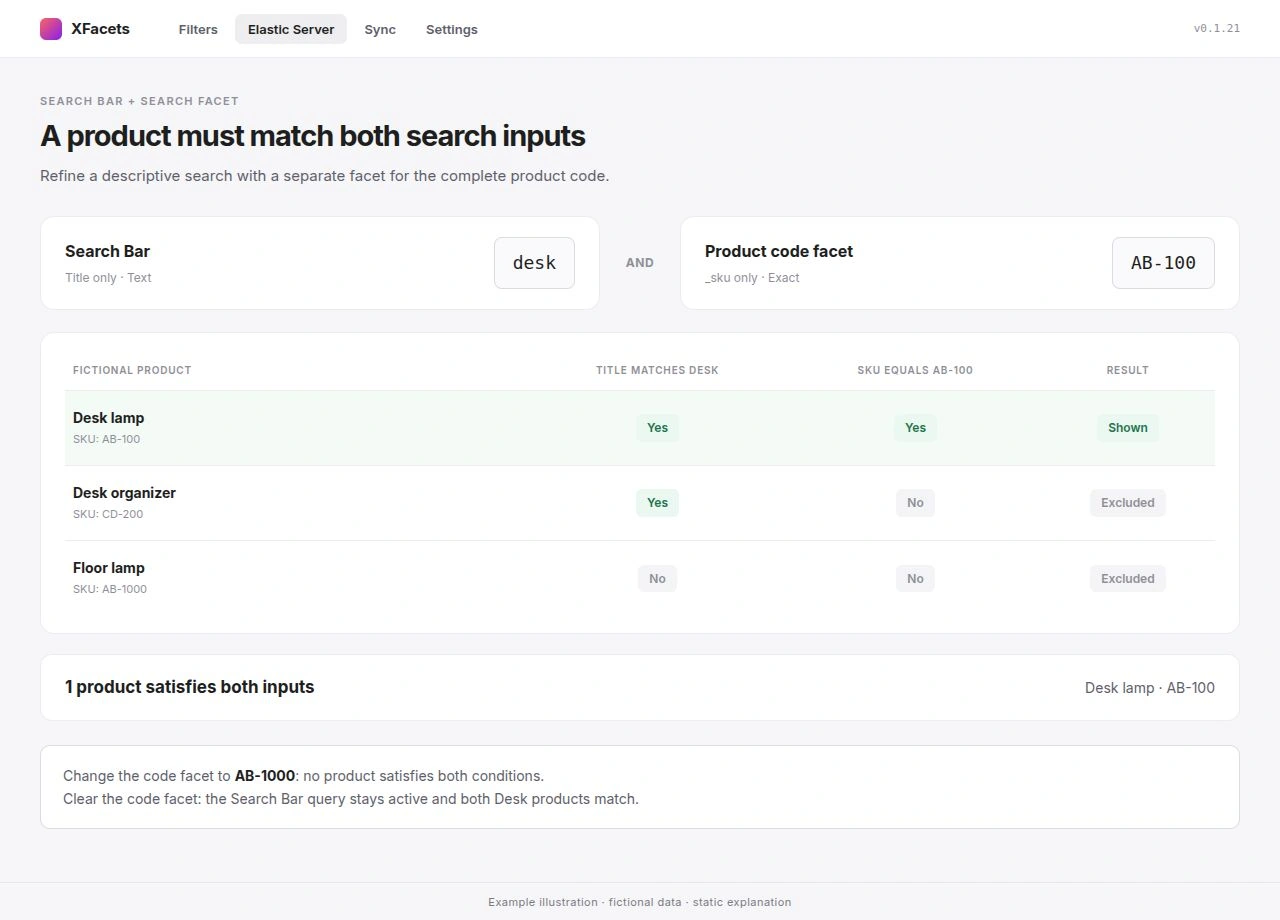
Each list can contain 1–20 fields. Within one input, a product can match any configured field. When the Search Bar query and a Search facet both have a value, the product must match both inputs. The same rule applies to multiple populated Search facets.
Choose fields for each input
For the Search Bar, go to XFacets → Elastic Server → Search Bar and edit Search fields. For a Search facet in WPXFacets 0.1.21, go to XFacets → Filters, open the facet, choose Search Fields as its Facet source and Search field as its Facet type, then edit its Search fields.
- Add or edit a field. Choose its Source and Source value, then set Matching mode and Weight.
- Click Add field or Save field to apply the row to the list. Cancel or Esc discards that row’s unfinished changes.
- Save the whole input: Save all changes for the Search Bar, or Save in the facet panel. The parent Save waits while a field edit is still open.
The available sources are WordPress field, Meta field, Taxonomy and Product attribute. Choose Title, Excerpt or Content for a WordPress field. For a meta field, enter the exact product meta key, such as _sku. A key outside the product index’s supported fields is refused when you save. Choose taxonomies and attributes from the available lists; price, rating and stock use their own filters.
Select each source and value once in an input. You cannot add the same field twice with different modes. Restore default fields gives that input Title (5), Excerpt (2) and Content (2), all Text; it does not copy fields from another input.
Choose a matching mode
| Match | What matches | Available for |
|---|---|---|
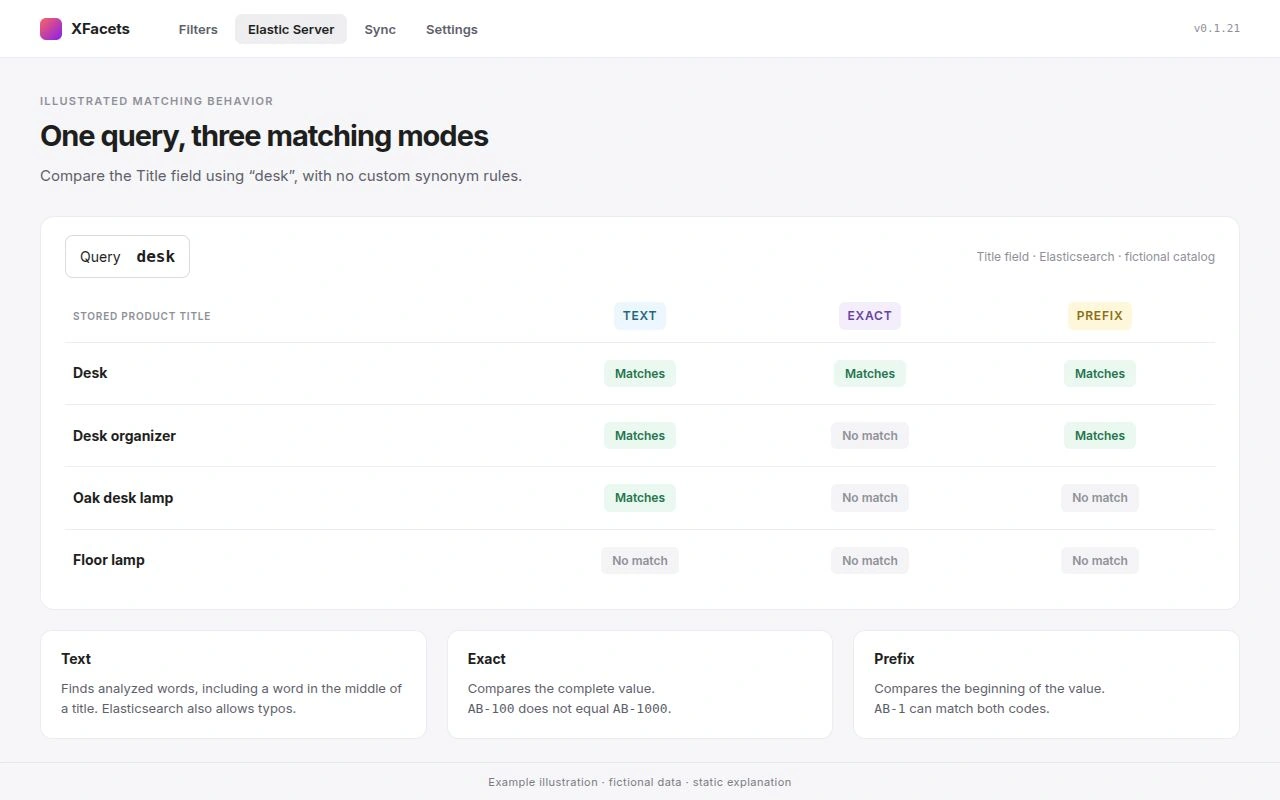
| Text | Analyzed words, with typo tolerance when Elasticsearch serves the search. Suitable for product names and descriptions. | All supported search fields |
| Exact | The whole field value equals the query, ignoring letter case and keeping punctuation such as hyphens and dots. | Title, meta fields, taxonomies and product attributes |
| Prefix | The beginning of the whole field value equals the query, ignoring letter case and keeping punctuation. | Title, meta fields, taxonomies and product attributes |
Excerpt and Content support Text only. Unsupported choices are disabled in the editor and rejected on save. Exact and Prefix do not use typo tolerance, stemming or synonyms. Prefix starts at the beginning of the stored value; it does not search for a substring in the middle, and shoppers do not add * wildcards.
For example, an _sku field with Exact matches AB-100 when the shopper enters ab-100. It does not match AB-1000, AB100 or AB-10. With Prefix, the query AB-1 can match both AB-100 and AB-1000, but it does not match XAB-100. A fictional code containing dots, such as ZX.20.004, keeps those dots in an Exact or Prefix comparison.
Weight accepts values from 0.1 to 100 and changes relevance ranking on Elasticsearch. Raising a weight does not make a code search stricter or remove products matched by another field. WP Query uses the input’s own fields and Exact/Prefix rules, but Text has no typo tolerance and results have no relevance ranking.
Example 1 A general Search Bar
Use descriptive text and a complete SKU as alternative ways to find a product:
| Source | Source value | Matching mode | Weight |
|---|---|---|---|
| WordPress field | Title | Text | 5 |
| WordPress field | Excerpt | Text | 2 |
| WordPress field | Content | Text | 2 |
| Meta field | _sku | Exact | 10 |
A shopper can search for a product description or enter a complete SKU. The SKU row matches only the complete code, but the Text rows can still admit other products for the same query. This configuration does not promise a SKU-only result set. Add a separate code facet when shoppers need that restriction.
Example 2 A facet for complete codes
Give a Search facet a title such as “Product code” and replace its default fields with one row:
| Source | Source value | Matching mode | Weight |
|---|---|---|---|
| Meta field | _sku | Exact | 1 |
For fictional products with SKUs AB-100, AB-1000 and XAB-100, entering AB-100 matches only the first SKU. Entering AB-10 matches none. Products must still satisfy the page’s other filters and catalog visibility rules.
Keep descriptive fields out of this facet if the input must match only codes. Its own field list can stay strict while the Search Bar remains suitable for descriptive searches.
Example 3 A facet for the start of a code
For shoppers who know only the beginning of a code, use a separate Search facet titled “Code starts with” with one row:
| Source | Source value | Matching mode | Weight |
|---|---|---|---|
| Meta field | _sku | Prefix | 1 |
In the same fictional catalog, AB-1 matches AB-100 and AB-1000; 100 does not match either code because it occurs later in the value. Use this facet instead of the Exact facet for partial-code lookup. If shoppers fill both facets, both conditions apply.
Combine descriptive search and a code facet
Suppose a fictional catalog has a “Desk lamp” with SKU AB-100 and a “Floor lamp” with SKU AB-1000, and the Search Bar searches Title only in Text mode. A Search Bar query desk plus the Exact code facet AB-100 keeps the Desk lamp. Changing that facet to AB-1000 leaves no match because the Floor lamp does not satisfy desk. Clearing the code facet removes that condition and keeps the Search Bar query.
A new search submitted from the Search Bar opens its destination without the previous page’s facet selections. Shoppers can then add code or other filters on the results page.
Product matches and completion suggestions
Search Bar product rows and submitted results use the Search Bar’s fields and matching modes. A Search facet’s fields do not configure the Search Bar dropdown.
Completion suggestions and “Did you mean” corrections propose a new query; they are not proof that a product matches the text already entered. Selecting one submits its proposed text and evaluates the fields again. Exact and Prefix keep their strict rules.
Saved field, weight and mode changes apply to the next product search. Completion inputs are built during indexing and can lag behind field changes: run Full Re-index when you want those suggestions rebuilt from the current Search Bar fields. The completion analyzer separates codes at non-letter characters, so a completion is not a guarantee of a complete SKU suggestion.
Fields must have indexed values for Elasticsearch to search them. A missing value can appear after the product is saved again or after a full re-index. Choosing a field does not create support for an arbitrary meta key or make every existing index compatible with every mode.
Older saved configurations
Search facets created before fields became independent have no own field list and match nothing until you configure and save them. Open each facet and choose its intended fields rather than assuming it inherits the Search Bar’s list. An invalid saved list also needs correction in the editor.
In WPXFacets 0.1.21, a Search Bar using the former global Fields configuration starts from Title, Excerpt and Content, all Text; the former global field list is not copied. Review its fields and other settings, then click Save all changes to store your intended configuration.
Language and suggestion requirements
On a multilingual catalog, product suggestions and results use the current catalog language. The site must be able to resolve that language before suggestions can run. For a configured Search results page, provide a published translation in each catalog language, containing XFacets Search Results. WPXFacets resolves that destination through Polylang or WPML. A missing or invalid translation prevents that destination from being used; it does not silently send the query to the original language’s page. Check the destination and Enter behavior in each language you serve.
Product suggestions require support from the managed search service. A Search Bar containing any Exact or Prefix field additionally requires support for those modes in suggestions. If that support is unavailable, the dropdown closes instead of treating the strict fields as Text. With a valid destination, Enter still submits the query and the results apply the configured modes. A Search Bar using only Text fields can use the service’s earlier suggestion support.
Check your configuration
After saving, reload the admin screen and confirm that each input kept its own list. On the storefront, try a descriptive query, a complete SKU, the start of a SKU and a code that does not exist. Then combine a Search Bar query with the code facet and clear the facet again.
For multilingual catalogs, repeat the destination and search checks in each language. Confirm product rows and submitted results separately from completion suggestions. If a product is missing, How to debug WPXFacets explains how to inspect the active query and check a product or SKU.
Return to WPXFacets Documentation for Search Bar placement, indexing and other filter settings.