How to debug WPXFacets
Query Debugger shows exactly what your storefront asked the managed search for, lets you try a changed query without touching the shop, and explains why a particular product is or is not in a listing. It is a developer and support tool: it is only visible to administrators who switch it on, and nothing you do in it is saved or changes what shoppers see.
Requirements
Availability: Query Debugger is included in WPXFacets 0.1.21 and later. Update the plugin on your site to use it. The capture and the product check work best with managed search (Elastic Server connected); on a site that filters with WordPress only, you can still inspect the selection and the query that would have been generated.
Before you start
- Log in as an administrator (a user who can manage options). Shop managers and other roles do not see the tool, and visitors never receive any of its data.
- Open the page you want to investigate: the Shop page, or a page with the WPXFacets results shortcode or block.
-
In the WordPress toolbar on that storefront page, open WPXFacets → Enable Query Debugger.
This entry is not shown in the WordPress dashboard. The page reloads with
xfacets_debug=1in the address and the Query Debugger panel opens at the bottom of the window. Pages with the tool switched on are never cached. - To switch it off, use Turn off in the panel, or remove the parameter from the address.
Find your way around the panel
- The panel is docked to the bottom of the window and leaves the shop usable: the page gets extra space at the bottom, and your filters stay clickable above the panel. Everything is put back as it was when you close the panel.
- Drag the panel’s top edge to resize it, or focus that edge and use the arrow keys. The buttons on the right expand, minimise and close the panel; Esc closes it too. Reopen it with the Query Debugger button in the bottom-right corner or WPXFacets → Open Query Debugger.
- The three tabs — Request, Playground and Check product — can be switched with the arrow keys.
- The strip under the tabs always describes the products currently on screen: Initial page for the page as it loaded, Refinement #n after you changed a filter, how they were served (for example Gateway), your environment’s name and the catalogue language (for example Main · en), the request ID with a copy button, the time taken and the number of products.
- On a phone the panel opens full screen; Esc or the close button returns you to the shop.
Inspect the request behind the products on screen
- Select facets exactly as a shopper would. The panel follows each change.
-
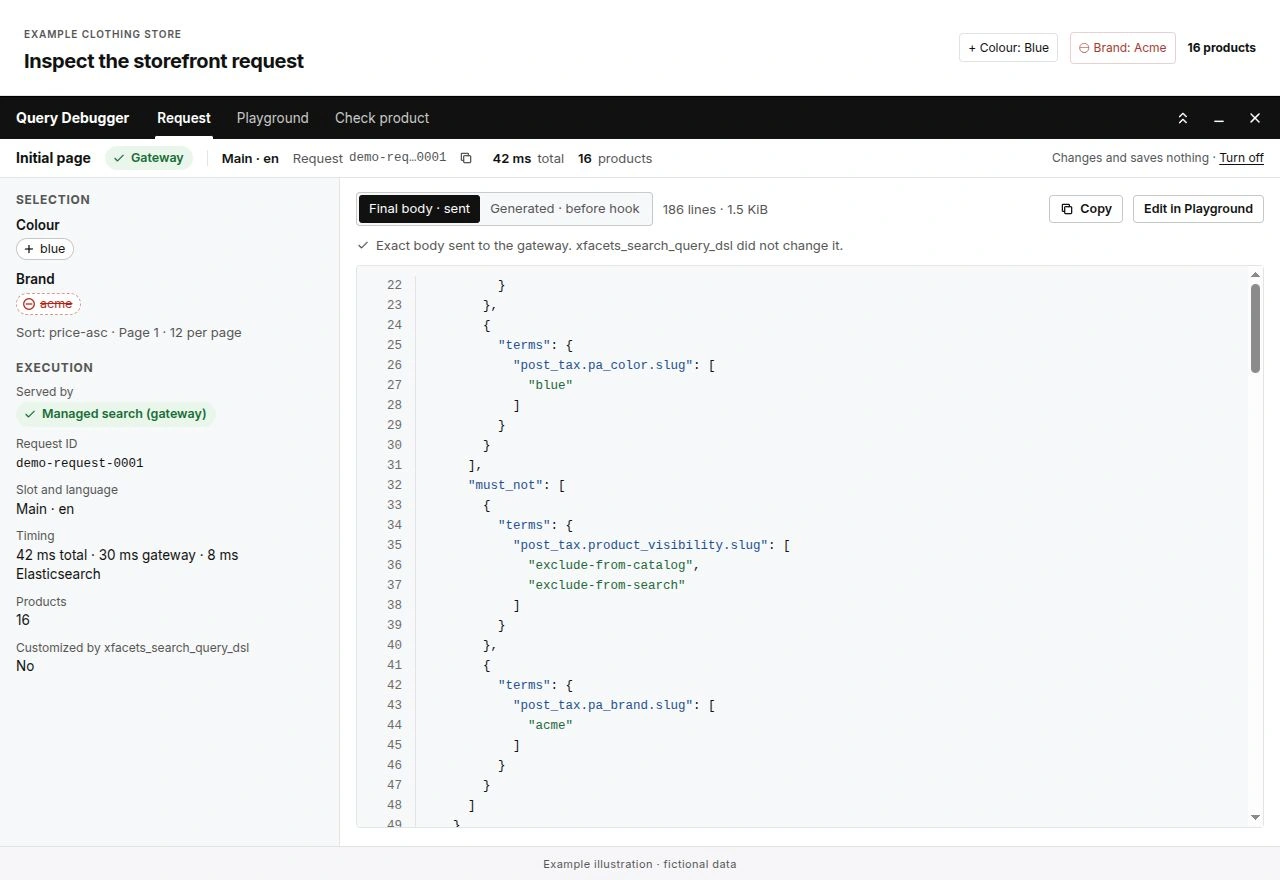
Open the Request tab. Under Selection you see the normalized facet values, including
excluded values, the sort and the page. Under Execution:
- Served by tells you which engine produced the listing: Managed search (gateway), WordPress fallback after the managed search failed, WordPress fallback; the managed search was not sent, or WordPress when managed search is not enabled for the storefront.
- Request ID is the identifier the managed gateway recorded for that search. Quote it when you contact support. Not sent to the gateway means no managed search ran.
- Slot and language and Timing show where the search ran and how long it took.
- Customized by xfacets_search_query_dsl says whether custom code changed the query.
-
Switch the viewer between Final body · sent and Generated · before hook. The final body
is the exact query body the plugin submitted to the gateway, after
xfacets_search_query_dsl; the line under the switch says whether your custom code changed it, or that the query was prepared but not sent. If nothing was prepared, only the generated body is available and the tool says it was never executed. - Copy copies the exact text you are viewing, unchanged. Edit in Playground opens that body — final or generated — in the Playground. If you have edited text there, the Playground first asks: Replace draft loads the body, Keep draft keeps your text.
If you change filters quickly, the tool keeps following the results that are actually displayed: an older answer arriving late never replaces the newest one. If the newest refinement fails, the tool says so and keeps showing the capture of the products that are still on screen.
Try a changed query in the Playground
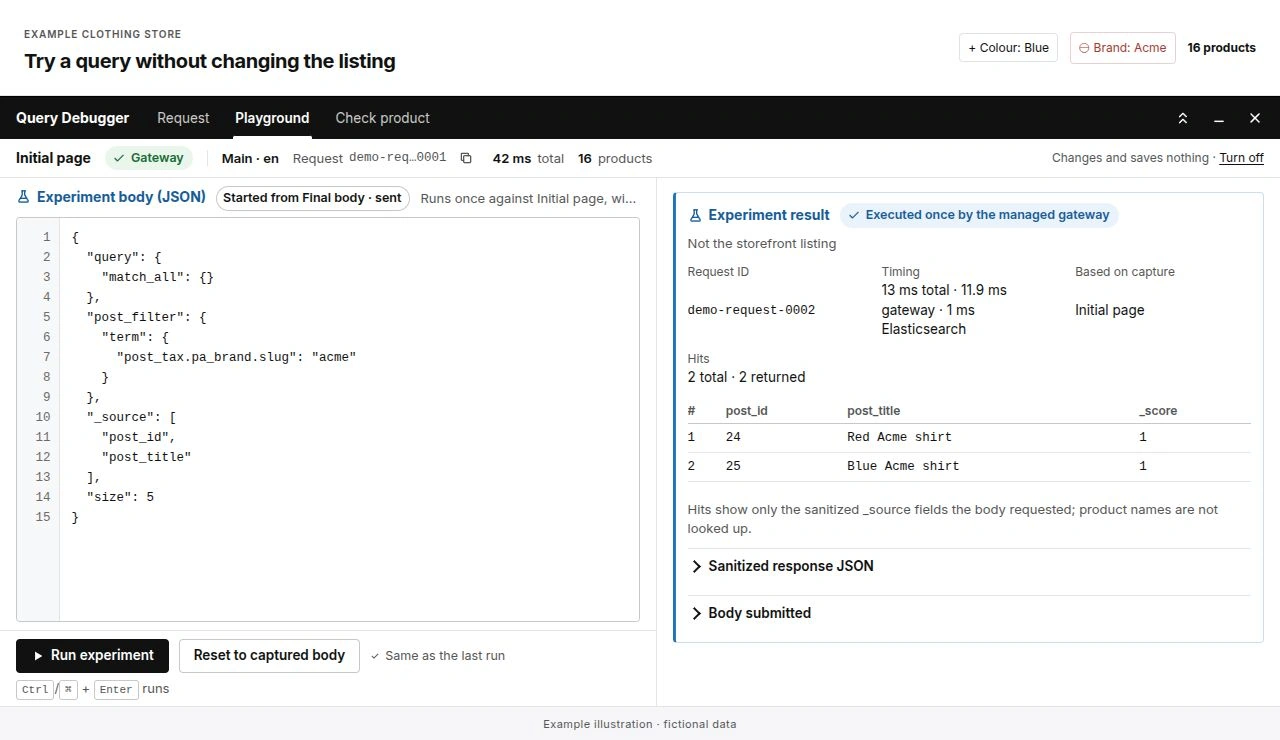
- In Playground, edit Experiment body (JSON). It starts with the captured final body, or with the body you opened from Request; the label next to the title says which, for example Started from Generated · before hook.
-
Select Run experiment, or press Ctrl+Enter (⌘+Enter on Mac) in the editor. The body is sent once
to the managed search, exactly as shown — your custom
xfacets_search_query_dslcode is not applied again. The Experiment result is marked Executed once by the managed gateway and Not the storefront listing, with its request ID, timing and a table of the hits showing the_sourcefields your body asked for (product names are not looked up). Aggregations, Sanitized response JSON and Body submitted open on request. The products on the page do not change. - While the text differs from what was last run, the tool shows Edited, not run yet.
- Reset to captured body restores the captured query and removes the experiment.
If you change filters while you have an edited draft, only your text is kept. A note says which capture the draft was based on (for example Initial page) and that Run now uses the newest one; the previous experiment and product check are cleared. Load current capture replaces your text with the newest captured body.
The Playground accepts only the managed search body (query, post_filter, aggs, sort, from,
size and similar keys). It explains what to fix when a body is not valid JSON, repeats a key, uses
a key that managed search does not allow, is too large, or contains a number that would change when
sent (for example an integer beyond the 64-bit range, or a decimal that would be rounded — write
such a code as a string). A query
the gateway refuses is shown as Rejected by the gateway with the reason, and an answer that
arrives after the 20-second budget is not used; neither is presented as executed.
Check why a product is missing
- In Check product, under Identify the product by, choose Product ID or SKU and enter the exact value.
- In Check against, keep Captured storefront request, or choose Last executed experiment to test your Playground query.
-
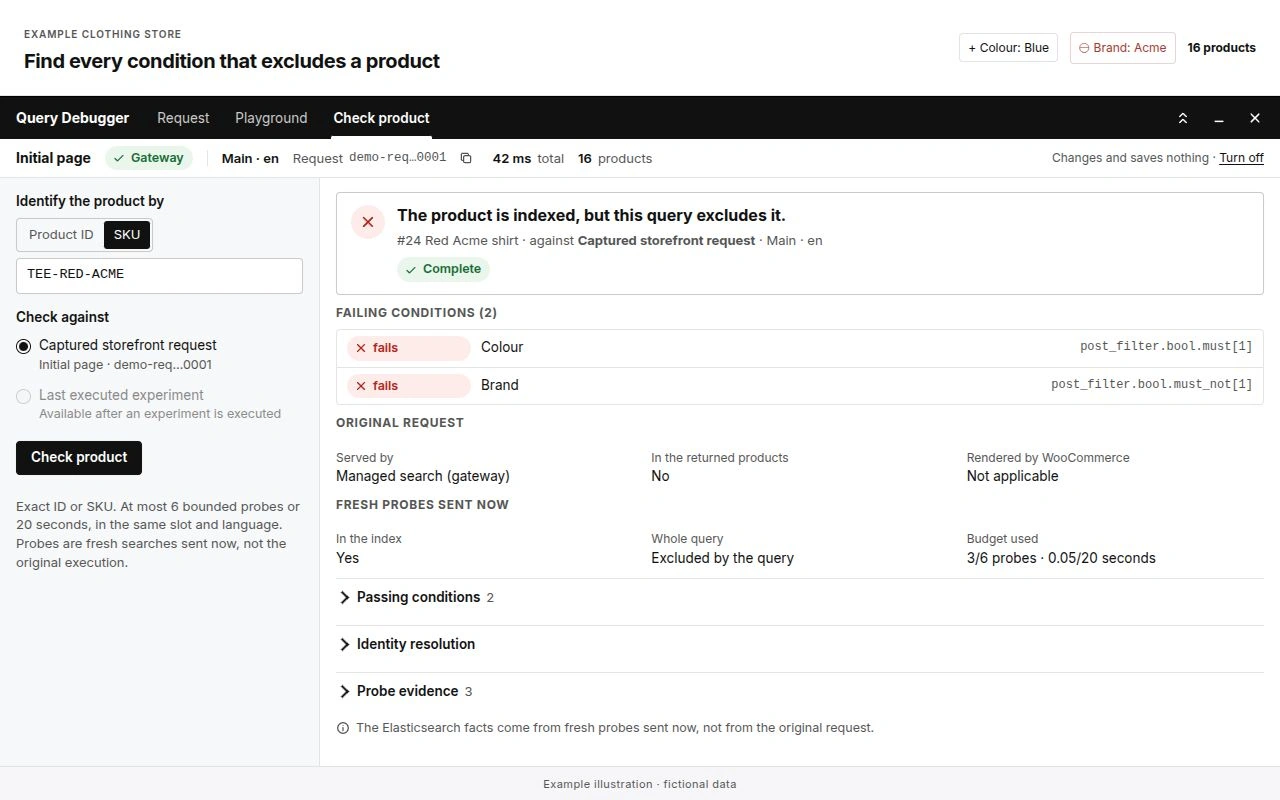
Select Check product. The conclusion comes first, marked Complete or Partial: some
evidence is unknown:
- The product is not in the index for this slot and language — synchronise it and check that it is published and in this language.
- The product is indexed, but this query excludes it — Failing conditions lists every condition the product fails, at the same time, with the facet or rule that created it. An excluded value appears as a failing condition of that facet. Conditions that could not be established come next; Passing conditions stay collapsed.
- …it is on another page because of the sort order and page size — the product matches, it is just not on the page you are looking at.
- The search returned the product, but WordPress or WooCommerce did not render it — for example a product hidden in WooCommerce after the last synchronisation.
- Several products have this SKU — Products with this SKU lists them; select Check #ID to check one of them by its ID.
- A variation is checked through its parent product, because the shop lists the parent. The tool tells you whether the variation itself is in the index, and never claims that a variation matched just because its parent did.
Each check sends a few small searches for that one product (at most six, within 20 seconds). These are fresh searches made now: the facts are listed separately under Original request and Fresh probes sent now, and the tool never presents the probes as the original request. If a search fails, times out, answers after the budget or the budget runs out, the result is marked Partial, the affected evidence is unknown — never "missing" or "excluded" — and Why the result is partial says what happened, including the error of a probe that failed.
Worked example
On a test shop the listing has Colour: Blue selected and Brand: Acme excluded. A shopper
asks why the red Acme shirt (SKU TEE-RED-ACME) is not shown. The example uses
Colour and Brand as global product attributes; adapt the taxonomy field names to your store.
-
The panel shows Initial page, Gateway, 16 products, and a final body whose
post_filtercontains the colour condition and the excluded brand. -
Check product with SKU
TEE-RED-ACMEagainst the captured request concludes The product is indexed, but this query excludes it, Complete, with Failing conditions (2): Colour and Brand — the product is red, and its brand is the excluded one. -
To see what the exclusion removes, the Playground body is replaced with
{"query": {"match_all": {}}, "post_filter": {"term": {"post_tax.pa_brand.slug": "acme"}}, "_source": ["post_id", "post_title"], "size": 5}and run. The hits table lists the Acme shirts; the products on the page stay the same. - Check product against Last executed experiment now concludes that the red Acme shirt matches and is on the requested page.
Limits
- Query Debugger shows what this page request did. A page served from a page or edge cache runs no search, so there is nothing to capture; the tool says no capture is available.
- A capture is valid for five minutes and only for the administrator and login session that made it. After that, reload the page or repeat the refinement.
- When the site served the listing with WordPress, the product check asks the managed index, which can differ; the conclusion says so. When custom code changes the query, conditions it added are labeled Custom clause, and conditions combined with OR are evaluated as a whole.
-
Queries that depend on scores (
min_score) or nested conditions over variations get a partial explanation. - Rendering evidence relies on the standard WooCommerce product loop. Themes or blocks that do not run it show Not observed.
- Six Run or Check actions per minute are allowed for each administrator.
- Nothing is saved: there is no history, no shared link and no change to your filters, settings, custom code or Search Analytics.