Which WooCommerce Filters Do Your Shoppers Actually Use?
See which filters shoppers use, review a suggested order, and put that insight to work across your WooCommerce catalog.

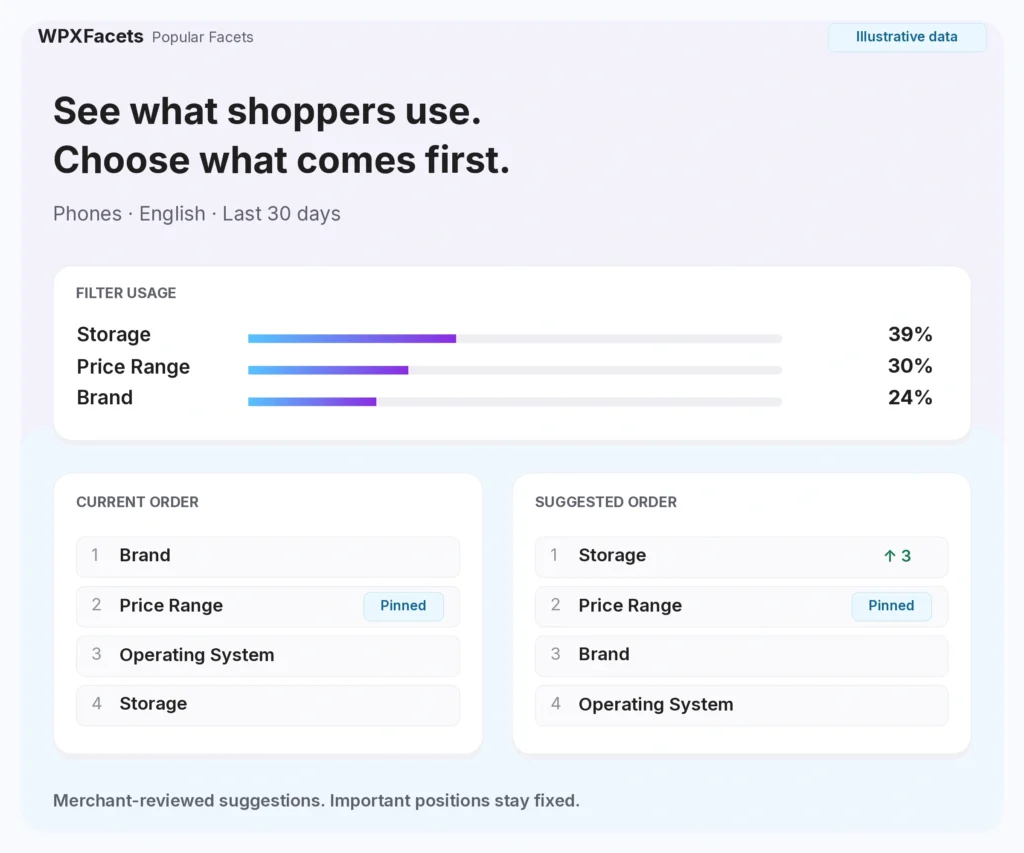
Image placeholder — Popular Facets overview
Which filters in your WooCommerce store deserve to be seen first? Popular Facets gives you usage reports from your own store and a suggested order you can review and apply. You can refine the catalog’s general browsing experience and give individual categories their own arrangement, using one shared filter form.
See which filters shoppers reach for
A report ranked by usage gives you a concrete starting point for reviewing filter order.
Open Settings → Popular Facets, choose a category and language, and review the last 7, 30, or 90 days. Each row shows the sessions using that filter, its eligible sessions, and the usage rate. Repeated selections count once per filter in a session and context: trying three storage sizes still contributes one use of Storage.
For pages without a fixed category, choose No cat. Its report gives you a view of general catalog browsing, kept separate from individual categories and languages. Reports cover your site’s default filter form; eligibility means a filter was available in the form configuration, which does not establish that the shopper saw it on screen.
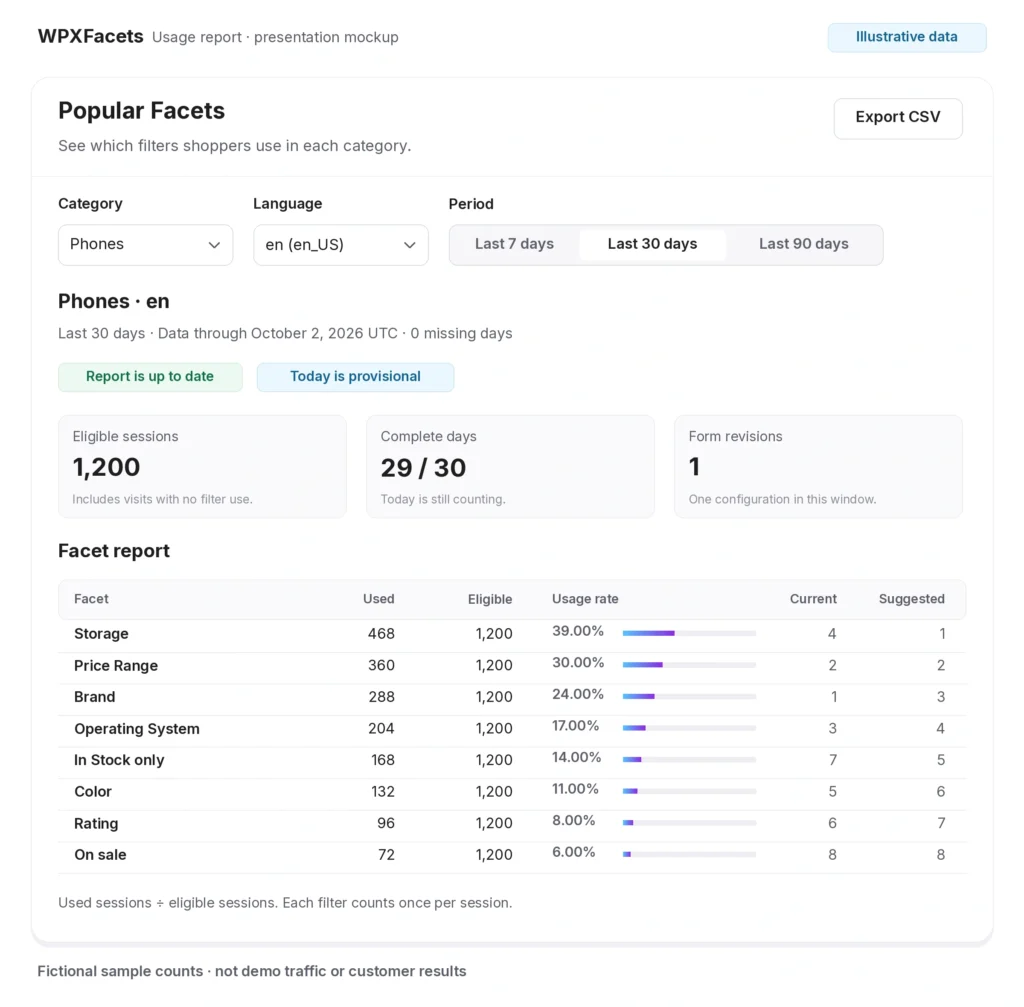
Image placeholder 1 — Popular Facets usage report
Give each part of your catalog an order you can justify
Review the suggestion, keep important positions fixed, and choose when to apply the change.
In our illustrative Phones report, Storage is used in 39% of eligible sessions and Brand in 24%. Storage currently appears fourth. The suggested order brings it to the top, while Price Range stays pinned in second position. You can inspect the current and suggested lists side by side before clicking Apply suggested order.
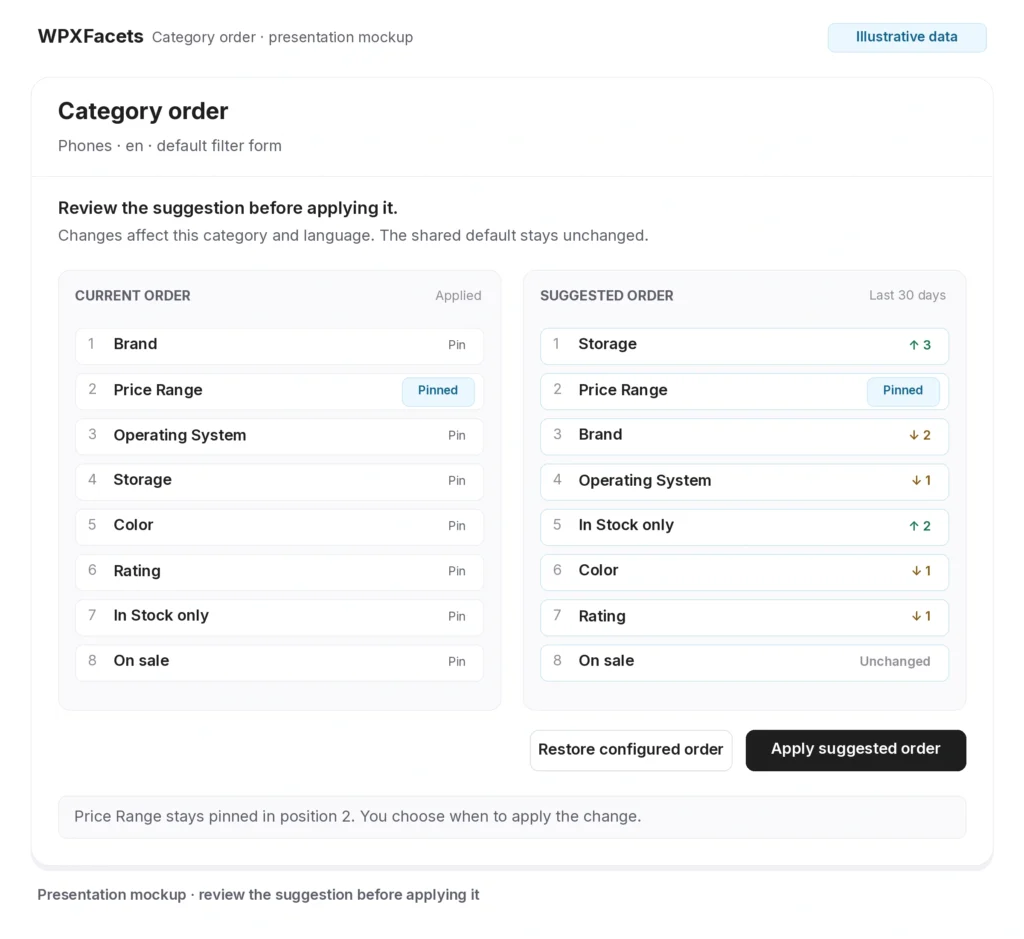
Image placeholder 2 — Current and suggested filter order
Applying to a category changes that category’s order for the selected form and language. Applying from No cat, using Apply to default order, updates the shared form’s default order. Pages without a fixed category and categories without their own order use that default. Saved category orders stay intact. The shared default applies across languages, even when you base the suggestion on one language’s report.
For a German electronics retailer, that could mean reviewing Storage on Smartphones separately from general catalog priorities. For an agency, the report gives a client discussion something concrete: which filters are used and why a particular order is worth trying.
Keep useful positions fixed and adjust the rest
Suggestions and manual ordering work together, with changes under your control.
Pin a filter that needs to hold its position, apply the suggested order, or adjust the list manually. Restore configured order returns a selected category to the current shared default. In the filter form editor, you can also select a category and drag its filters into order.
The storefront keeps that order during interaction, preserving product matching and selections. You can use manual ordering with collection off or before enough traffic has accumulated. Popular Facets is available on every plan, including Free; its reports do not require managed Elasticsearch.
Use the ranking alongside your knowledge of the store
Usage identifies candidates for review; the filter’s purpose still matters.
A filter near the top may get more use because it is easier to discover. A less-used filter may still be essential to choosing a suitable product. Check both before moving it. Suggestions need at least 100 eligible sessions, and the report flags data coverage and provisional counts. Outdated or inconsistent data does not produce a suggestion.
These reports help you make navigation decisions. Establishing an effect on purchases requires its own experiment.
Start with one order you want to improve
Choose No cat or a category with several useful filters and examine one proposed change.
- Check the period, session counts, and coverage notices.
- Compare current and suggested positions, preserving any necessary pins.
- Apply the change to that context.
- Inspect the storefront on desktop and mobile, including selections and results.
Enable collection with the switch in Popular Facets. Statistics stay in your WordPress database and use a short-lived first-party session cookie. Your site manages cookie consent; supported consent integrations can stop collection for a visitor. Turning collection off keeps existing reports and leaves manual ordering available.
For the broader architecture, see our WooCommerce filtering options guide.
Sources and evidence
The interface examples use fictional session counts to explain the workflow. For product documentation and release details, see the WPXFacets documentation and changelog.